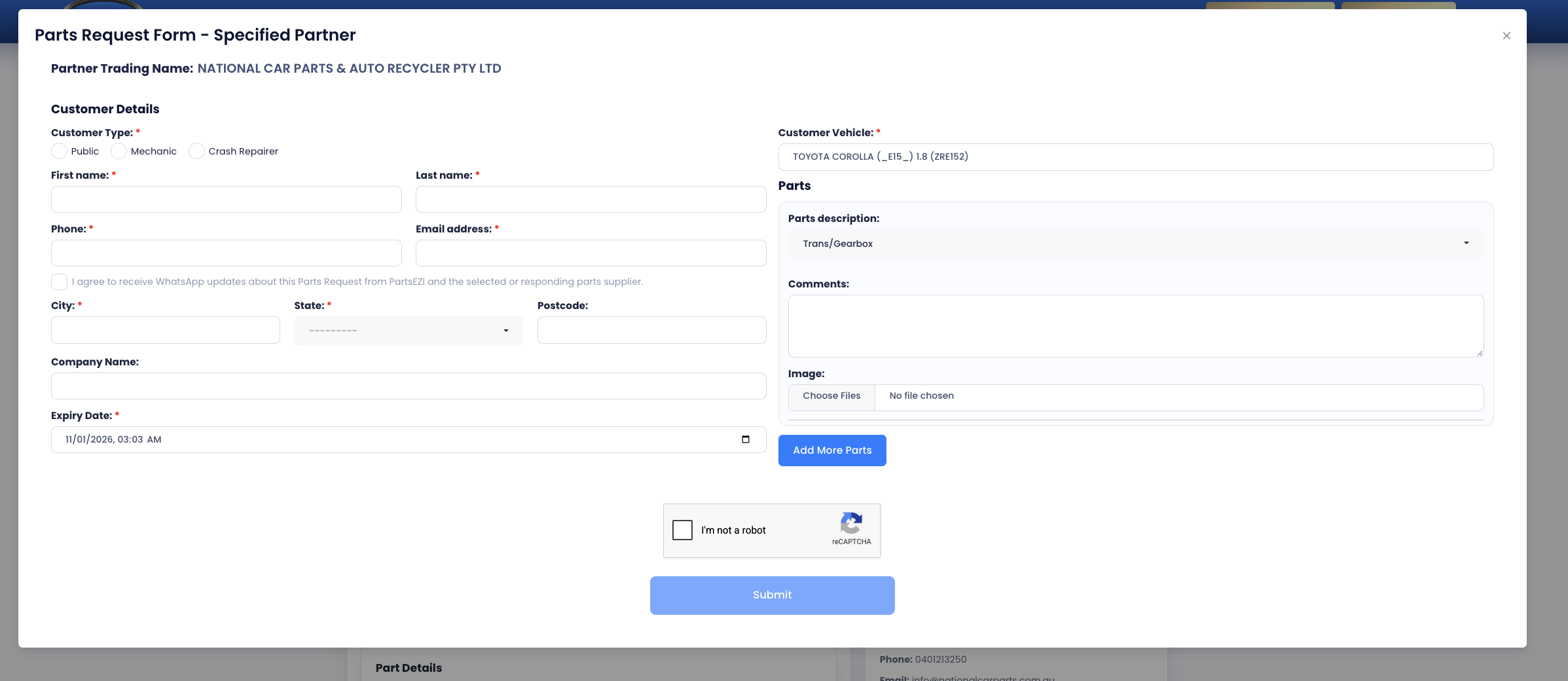
Creating Parts Request via public search
Customers can also find parts and vehicles from PartsEZI's public Parts & Vehicle Search page and send a parts request directly to the partner that has them.
Searching for Parts
At the top of the page, enter the part you're looking for in the Search part or vehicle field, then select the vehicle's Make, Model and Year. You can also narrow the search by Rego, State or VIN. Press the Search button to see the results.
The Recently Added Vehicles section below the search shows the latest vehicles added by our partners.
Viewing the Search Results
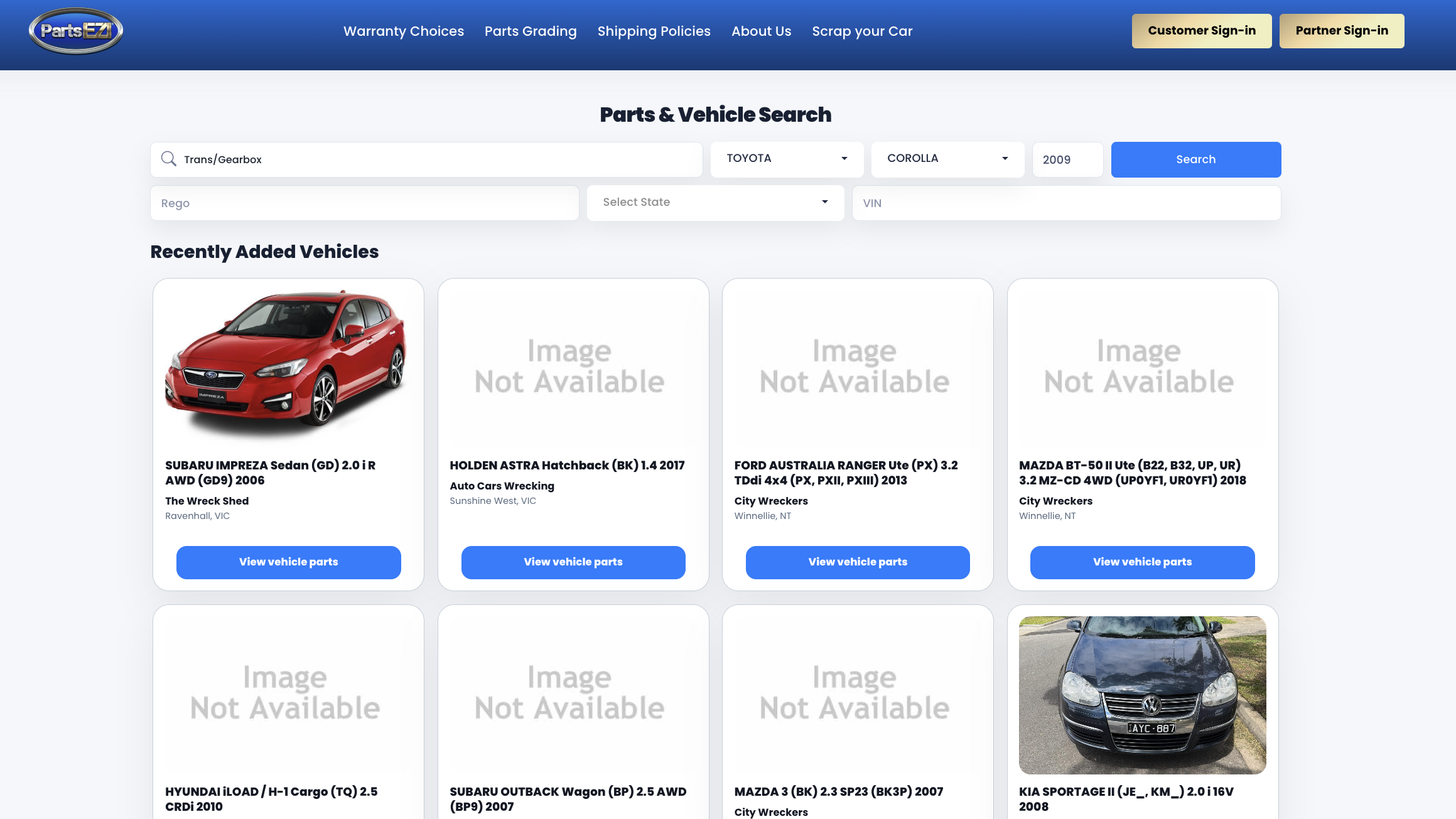
The search results are split into two sections:
Vehicles - Vehicles matching your search, along with the partner that has them and their location. Click View More to load more vehicles.
Parts - Parts matching your search, showing the price, vehicle, grade and partner.
Use the filters on the right to narrow the results by Partner name, City, Postcode, State or KM Radius, then press Apply Filters. Press Reset Filters to clear them.
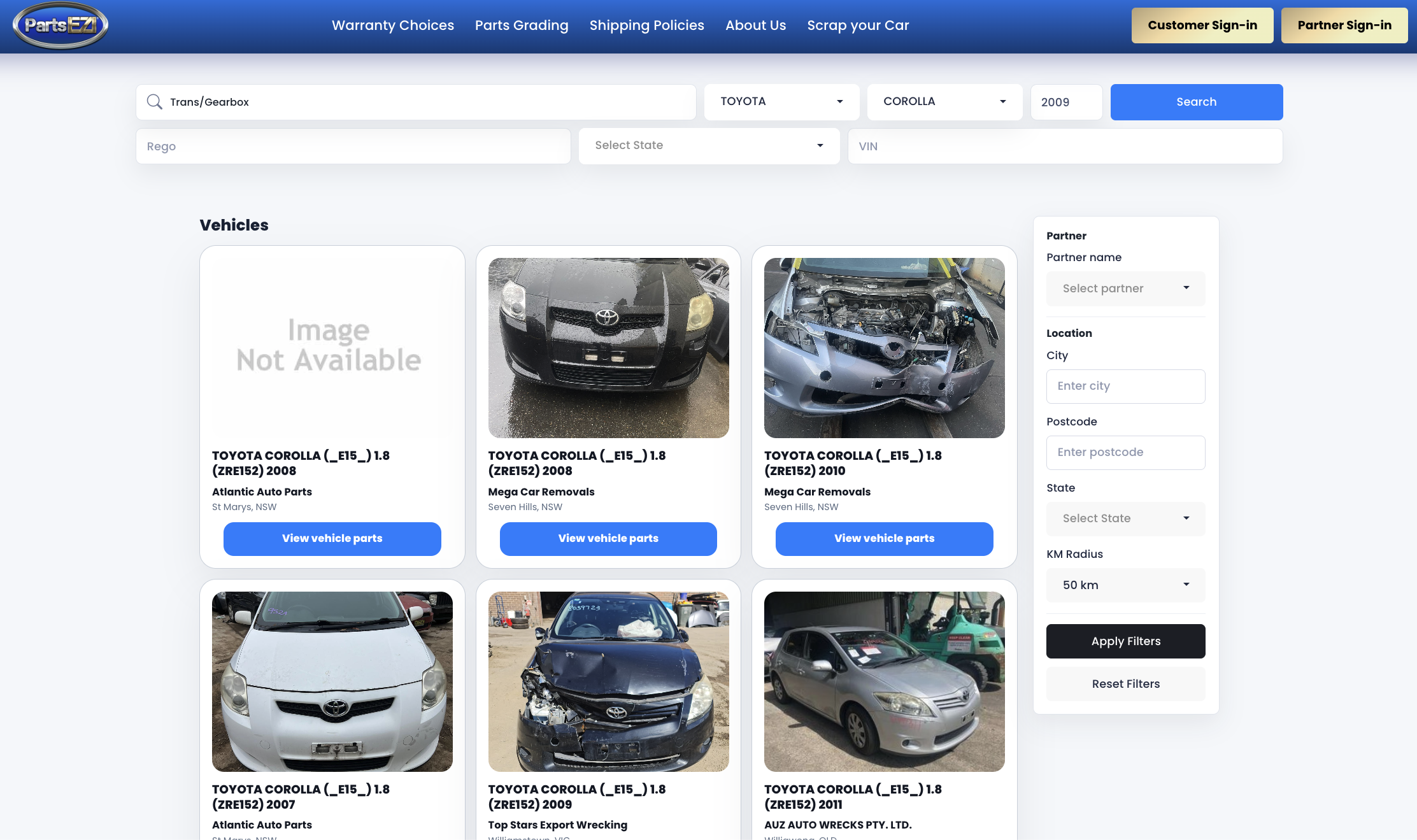
Click Request for part on any part to open its details page.
Browsing a Vehicle's Parts
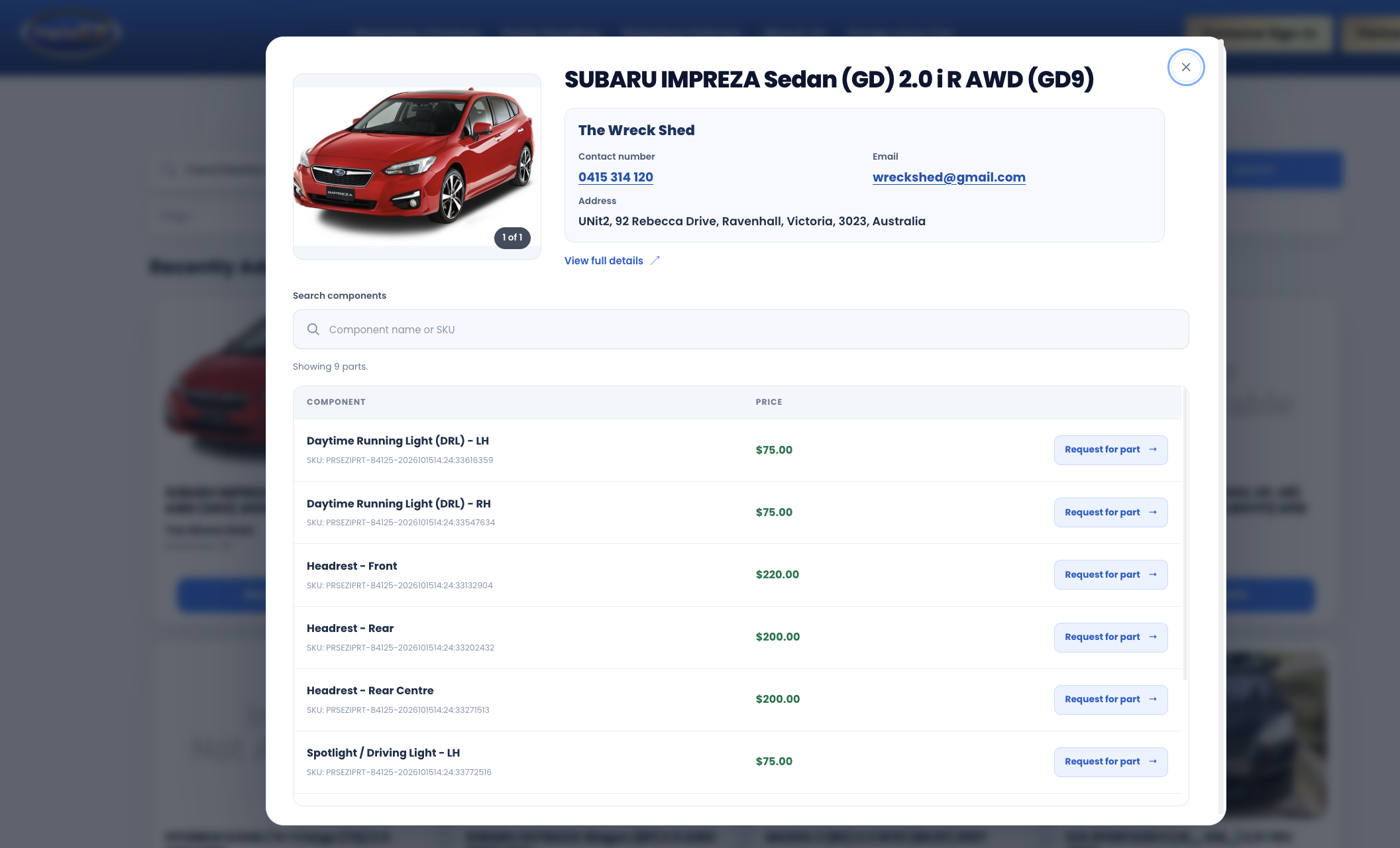
Clicking View vehicle parts on any vehicle, including those under Recently Added Vehicles, opens the vehicle's details. This shows the partner's contact number, email and address, along with the list of available parts and their prices.
Use Search components to find a part by name or SKU, then click Request for part next to it.
Sending a Parts Request
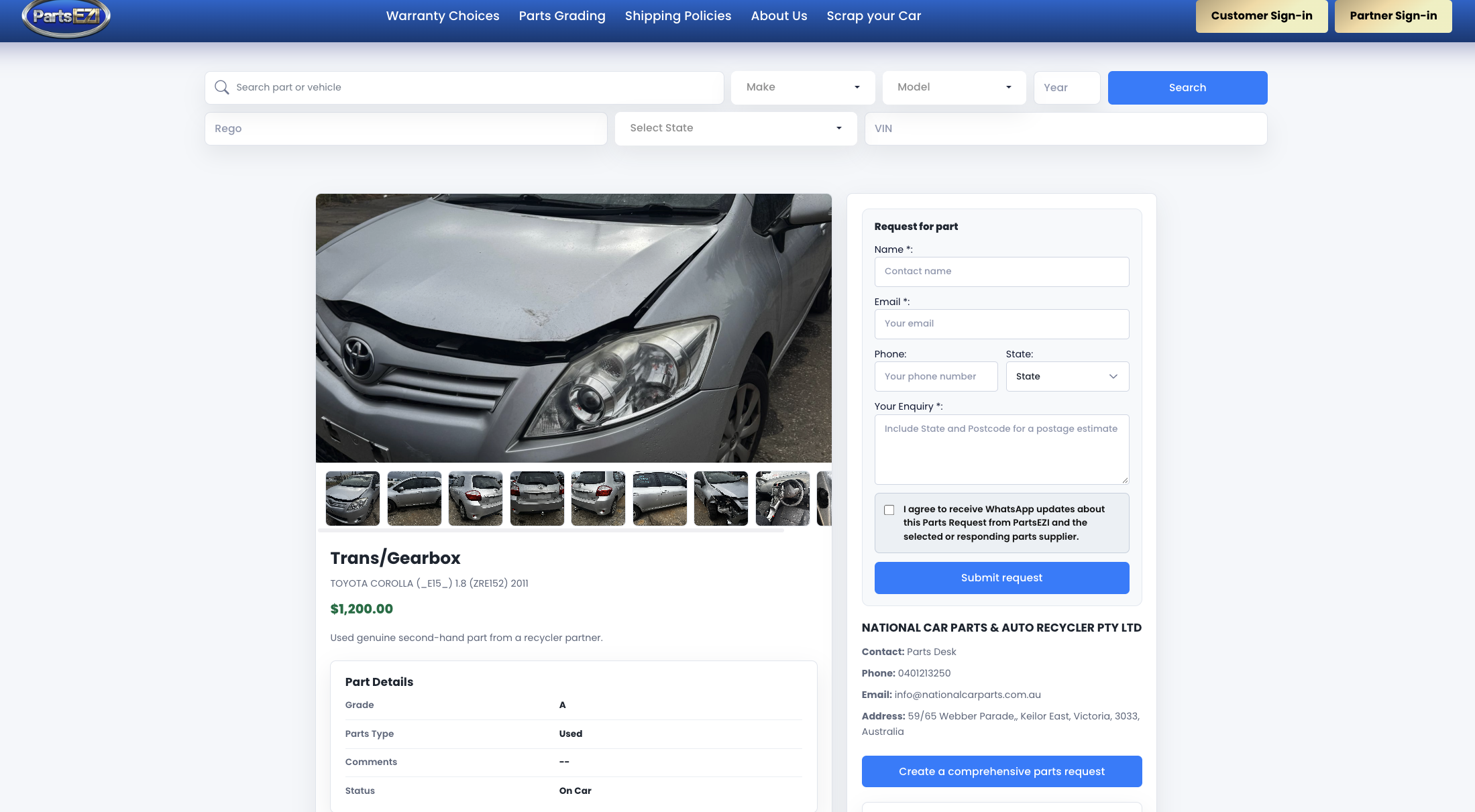
The part's details page shows the part's images, price and details, along with the partner's contact information.
To send a quick request, fill in the Request for part form with your name, email, phone number, state and enquiry. Tick I agree to receive WhatsApp updates if you'd like to receive updates about this parts request on WhatsApp. Then press Submit request.
Creating a Comprehensive Parts Request
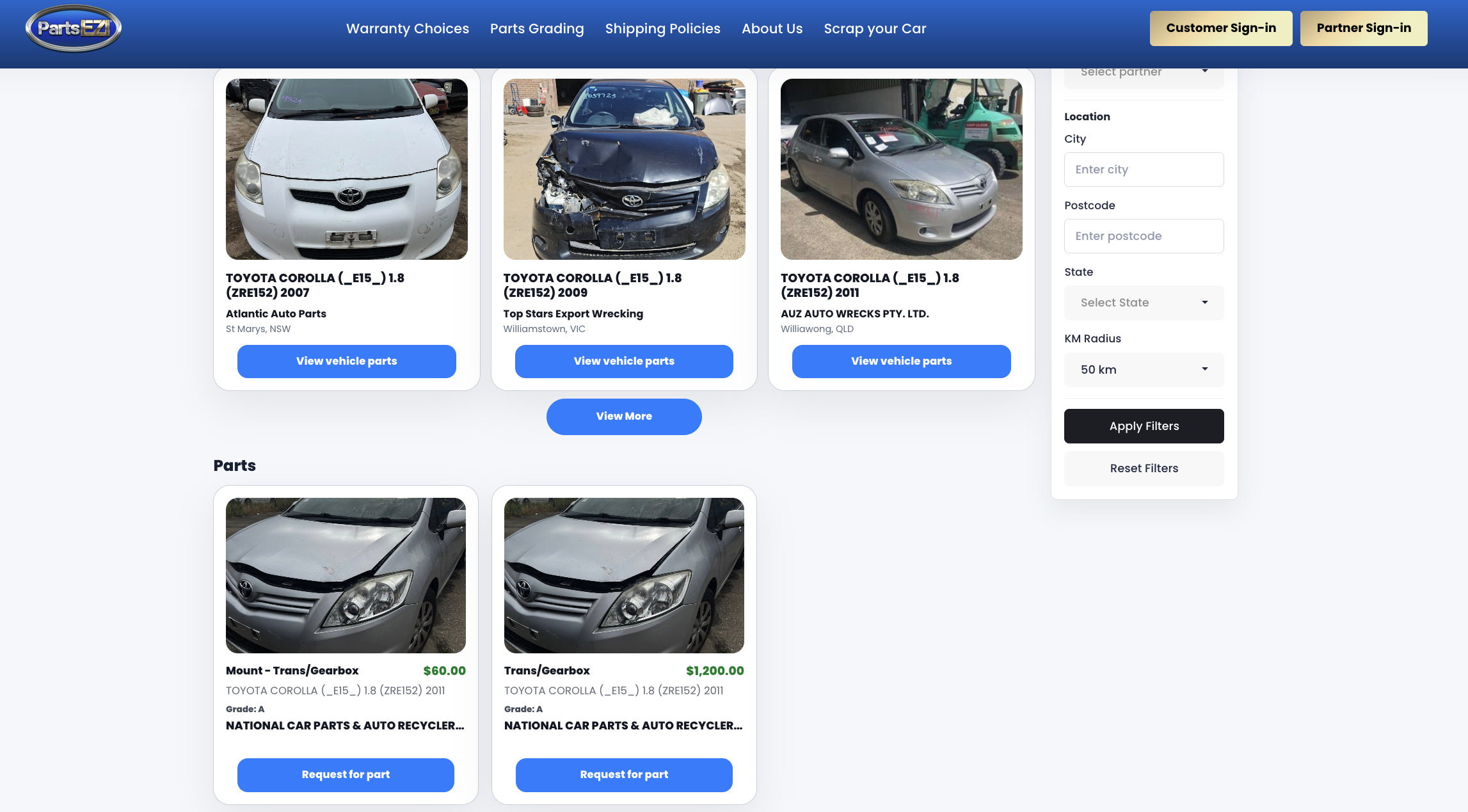
For a more detailed request, press Create a comprehensive parts request on the part's details page. This opens the Parts Request Form - Specified Partner, which is sent only to that partner.
Fill in the following details:
- Customer Type (Public, Mechanic or Crash Repairer)
- First and last name, phone and email address
- City, State and Postcode
- Company Name (optional)
- Expiry Date of the request
- Parts description, comments and images
The customer vehicle and part are filled in automatically. Press Add More Parts to request more parts from the same partner. Tick the WhatsApp updates box if you'd like updates on WhatsApp, complete the reCAPTCHA, then press Submit.