WhatsApp Onboarding
This guide walks you through connecting your WhatsApp Business account to PartsEZI so you can communicate with customers and send quotations through WhatsApp.
Prerequisites
Before you begin, make sure you have:
- A WhatsApp Business account
- A Meta Business account (business portfolio)
Step 1: Open the Integrations Page
From the PartsEZI side menu, open Integrations. Find WhatsApp at the bottom of the integrations list and click the Connect button.
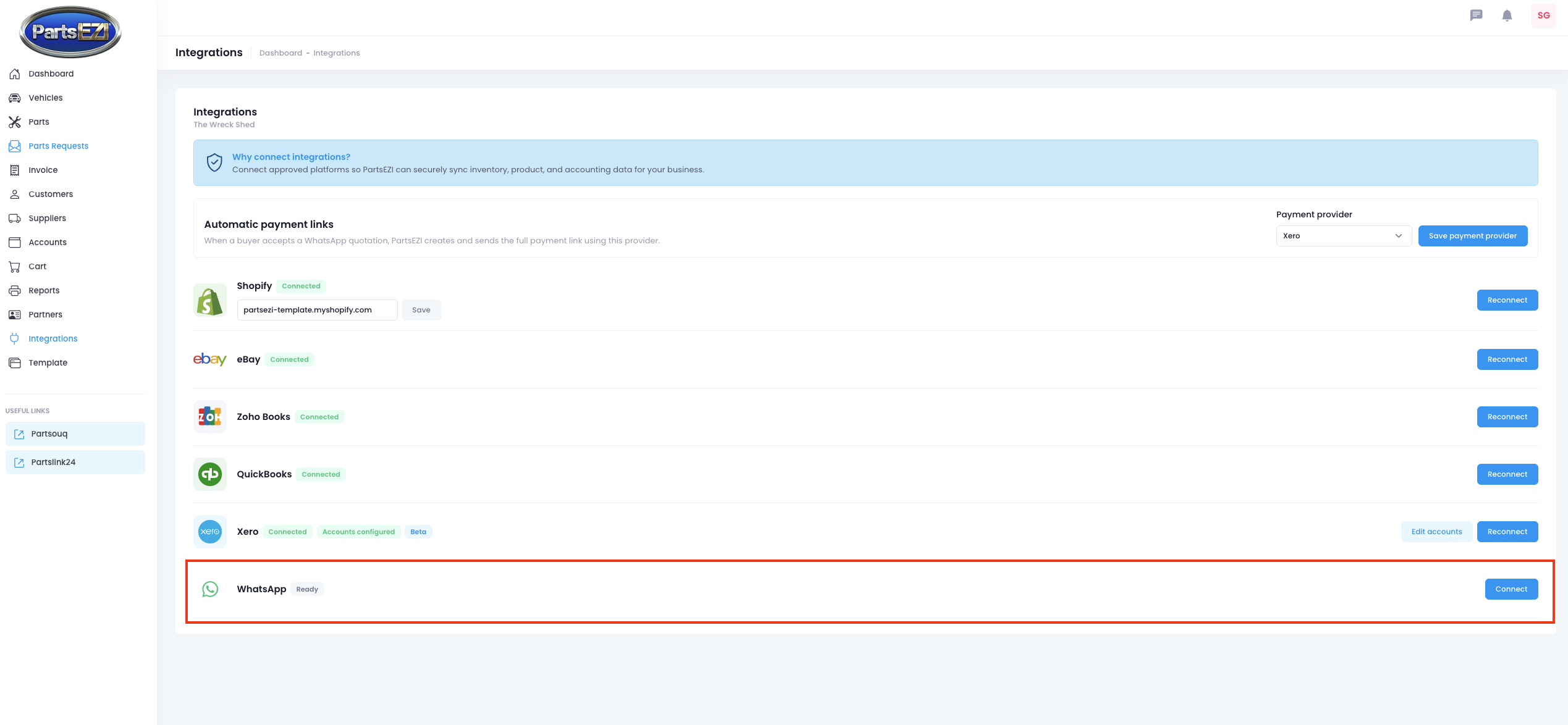
Step 2: Start the Meta Onboarding
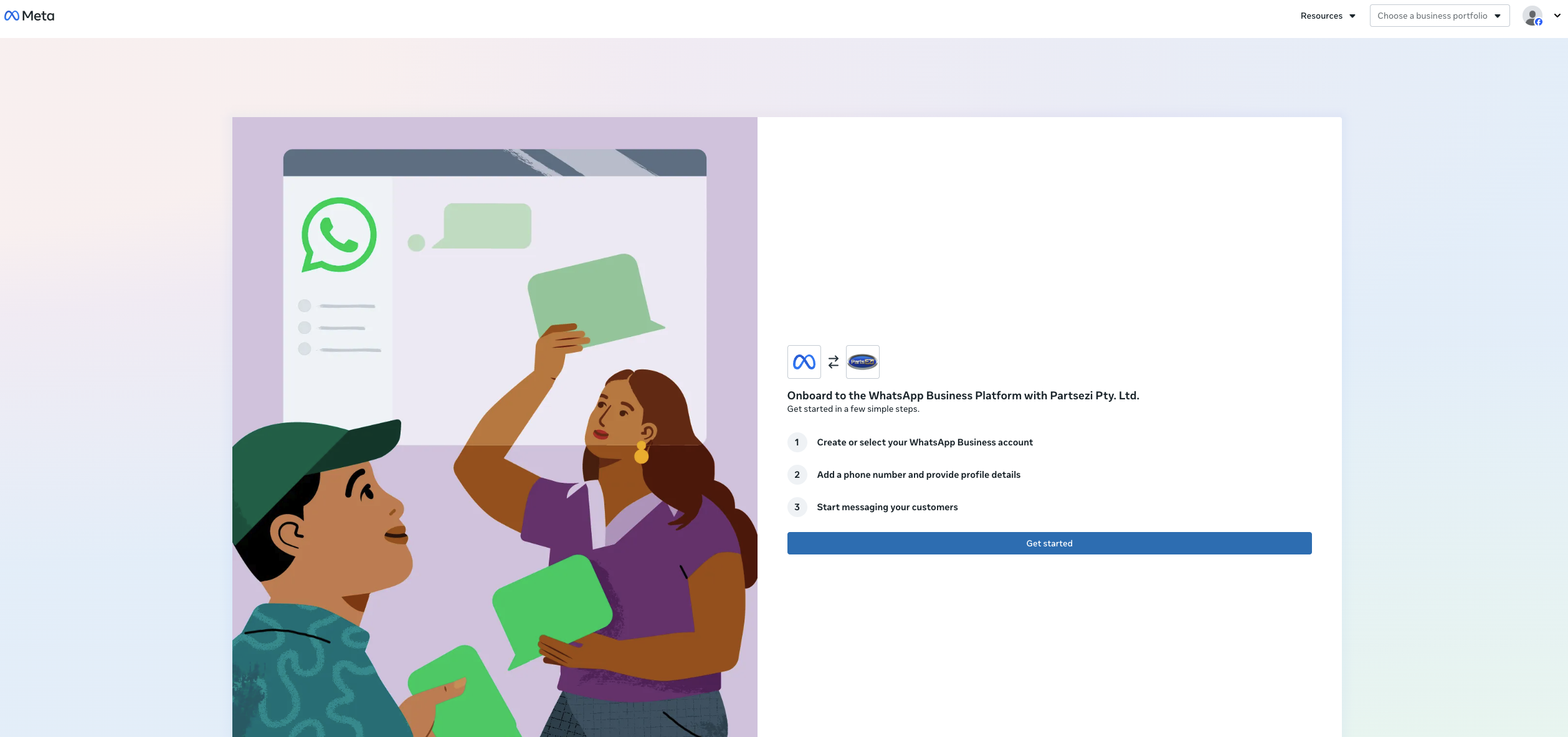
A Meta page opens to onboard you to the WhatsApp Business Platform with Partsezi Pty. Ltd. It lists the steps ahead:
- Create or select your WhatsApp Business account
- Add a phone number and provide profile details
- Start messaging your customers
Click Get started.
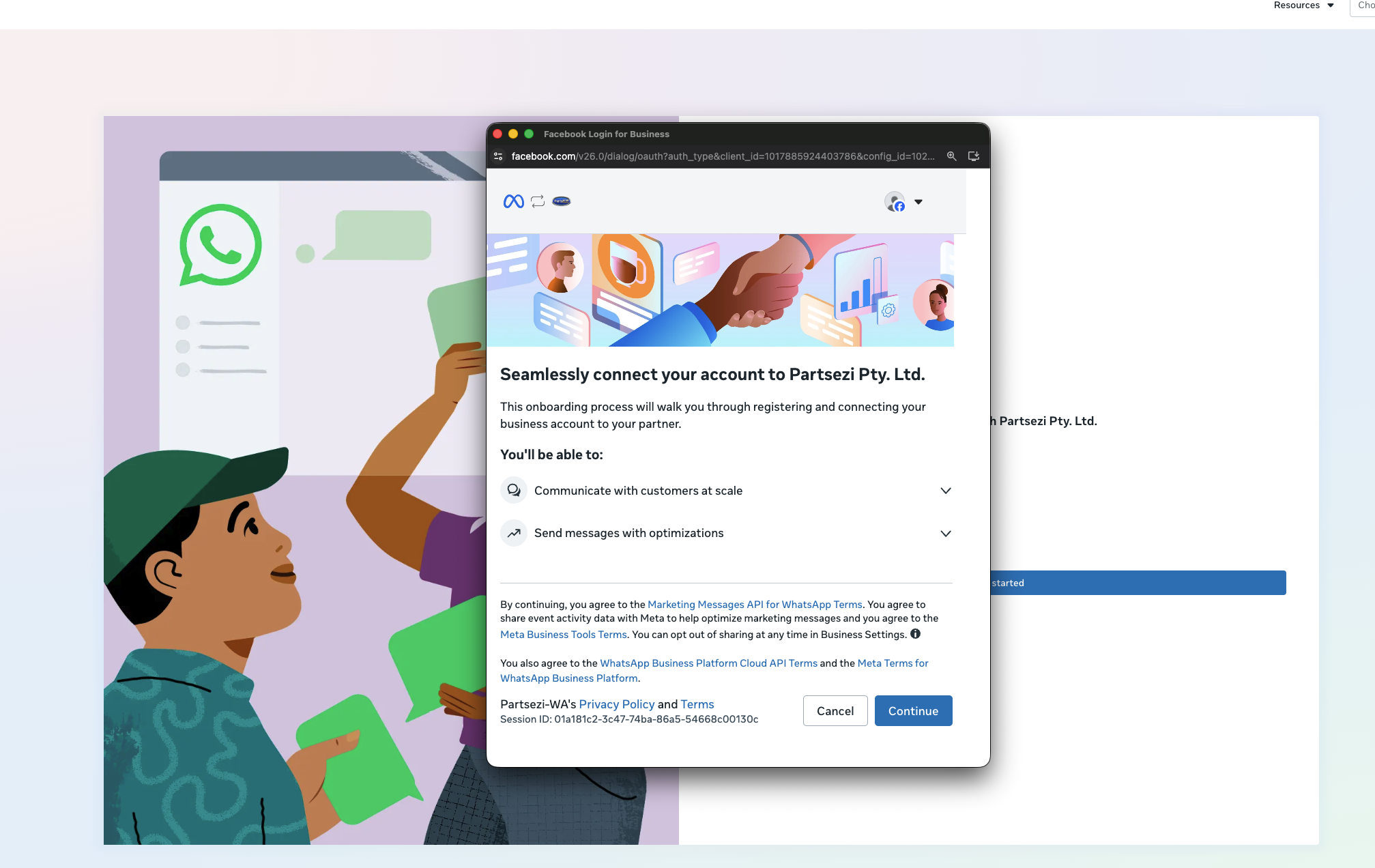
Step 3: Log In and Accept the Terms
A Facebook Login for Business window appears. Log in with the Facebook account linked to your Meta Business account if prompted, review the terms, then click Continue.
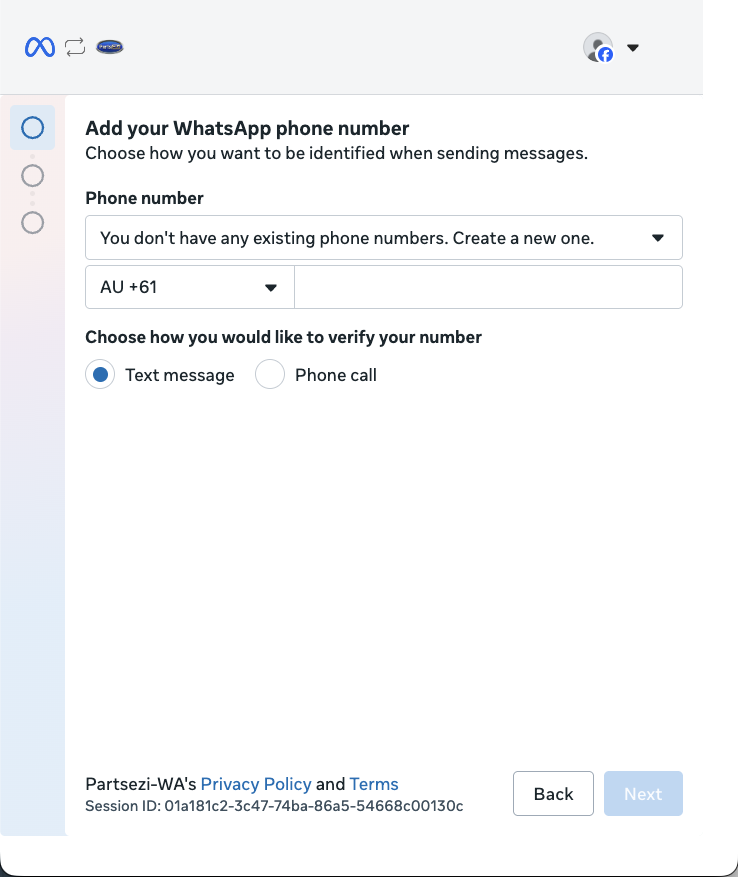
Step 4: Add Your WhatsApp Phone Number
Select an existing phone number from the dropdown, or create a new one by choosing the country code and entering the number. Choose how you would like to verify the number (Text message or Phone call), then click Next.
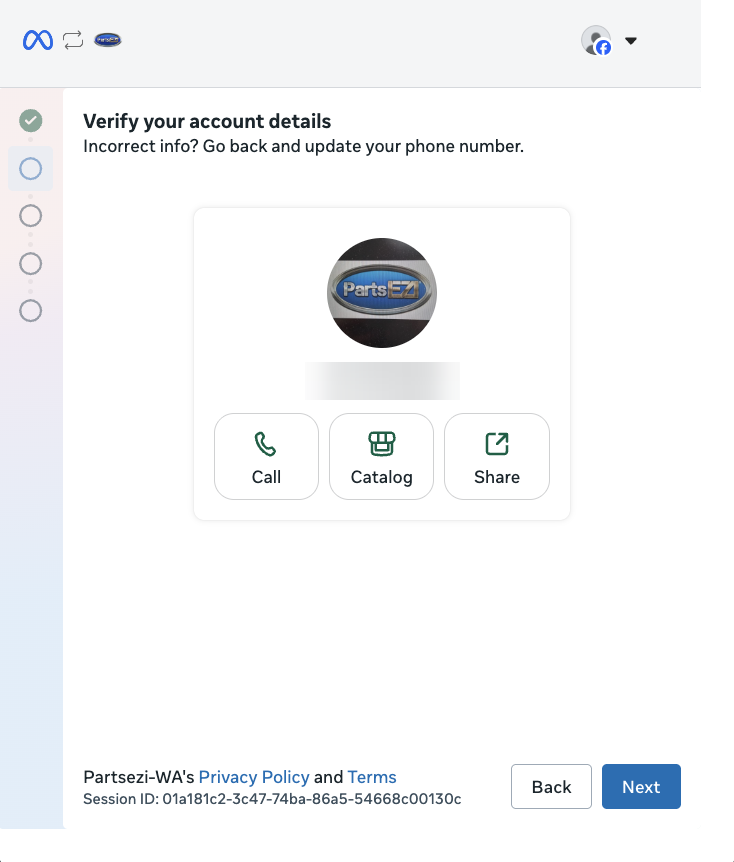
Step 5: Verify Your Account Details
Check that your business profile and phone number are correct. If anything is wrong, click Back to update your phone number. Otherwise, click Next.
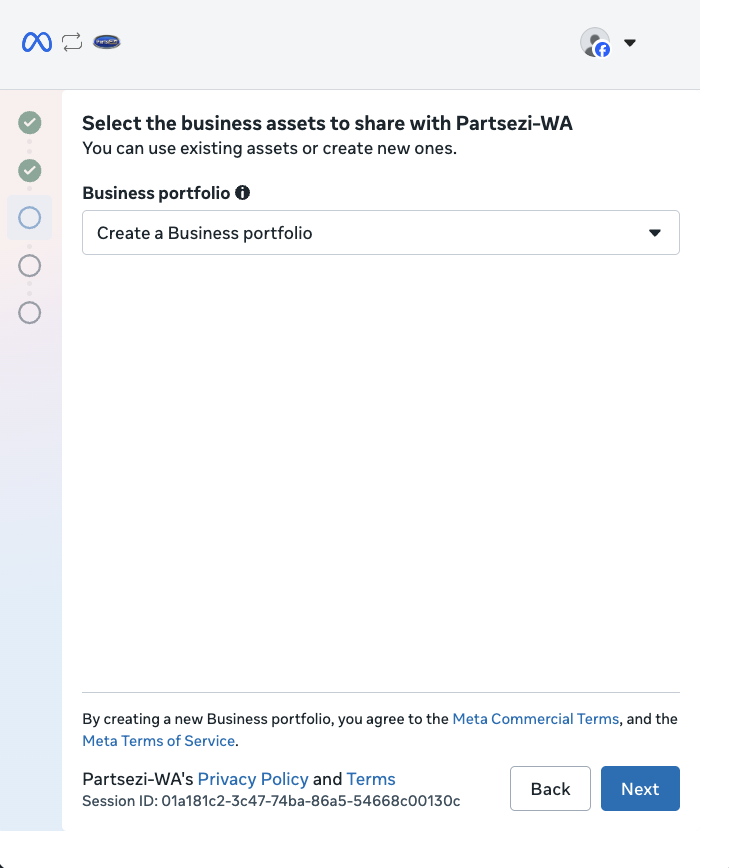
Step 6: Select Your Business Portfolio
Choose the Meta Business portfolio to share with Partsezi-WA. You can select an existing portfolio or create a new one. Click Next.
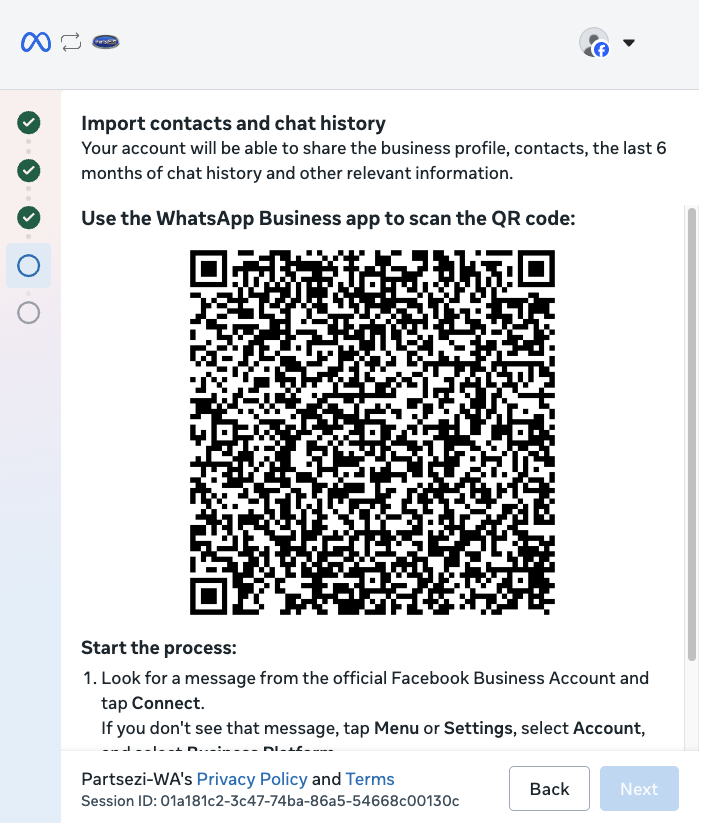
Step 7: Import Contacts and Chat History
Open the WhatsApp Business app on your phone and scan the QR code shown on screen. This lets your account share your business profile, contacts, the last 6 months of chat history and other relevant information.
- In the WhatsApp Business app, look for a message from the official Facebook Business Account and tap Connect.
- If you don't see that message, tap Menu or Settings, select Account, then select Business Platform.
Once the import is complete, click Next to finish.
Once onboarding is complete, the WhatsApp integration will show as Connected on the PartsEZI Integrations page.