How it Works
Once your WhatsApp integration is connected, customers can send parts requests, receive quotations and pay for parts through WhatsApp. This page walks through the full flow from parts request to payment.
Step 1: Customer Sends a Parts Request
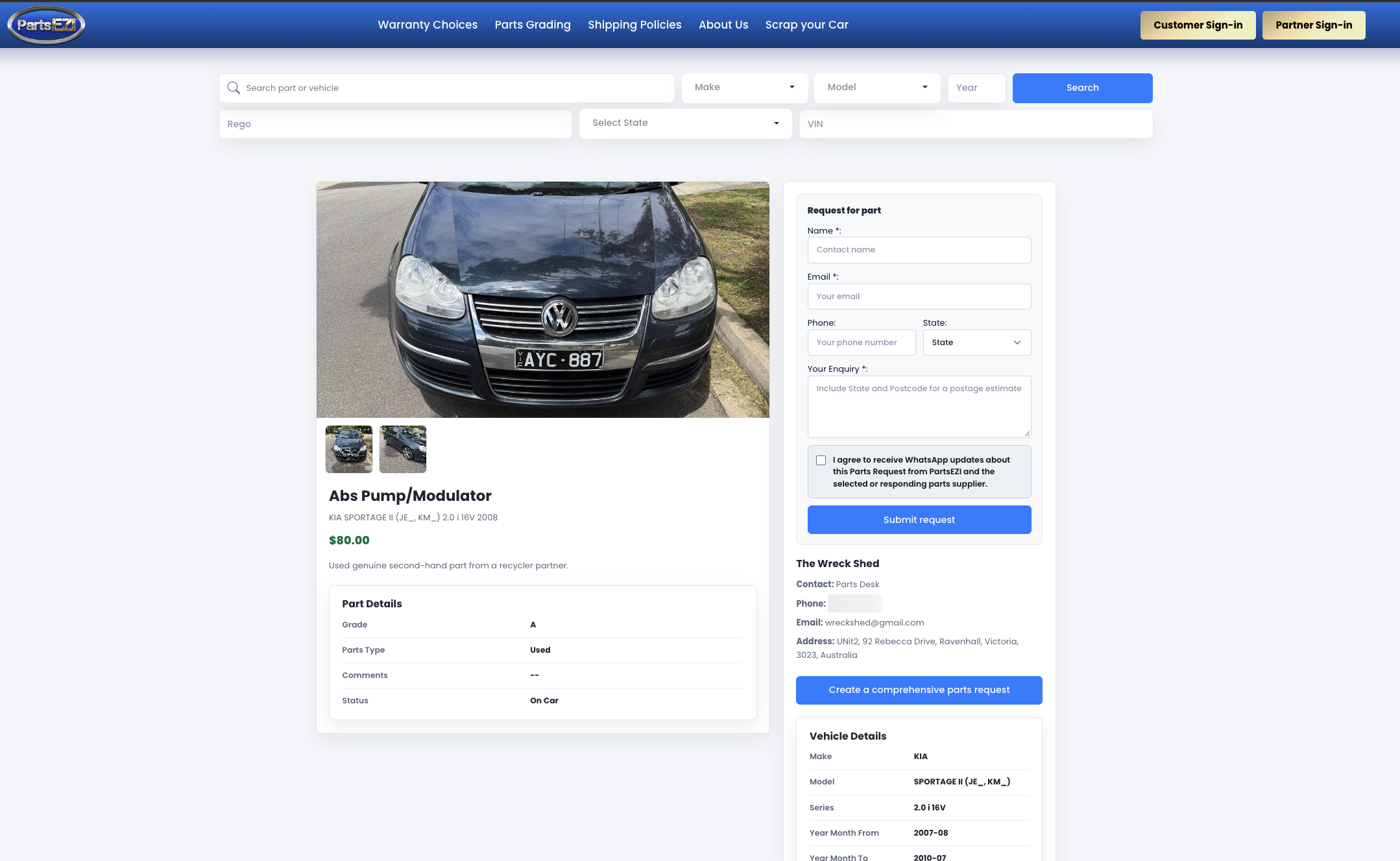
On a part's page in PartsEZI, the customer fills in the Request for part form with their name, email, phone number, state and enquiry. To receive updates through WhatsApp, they tick I agree to receive WhatsApp updates about this Parts Request from PartsEZI and the selected or responding parts supplier, then click Submit request.
Step 2: Customer and Partner Are Notified on WhatsApp
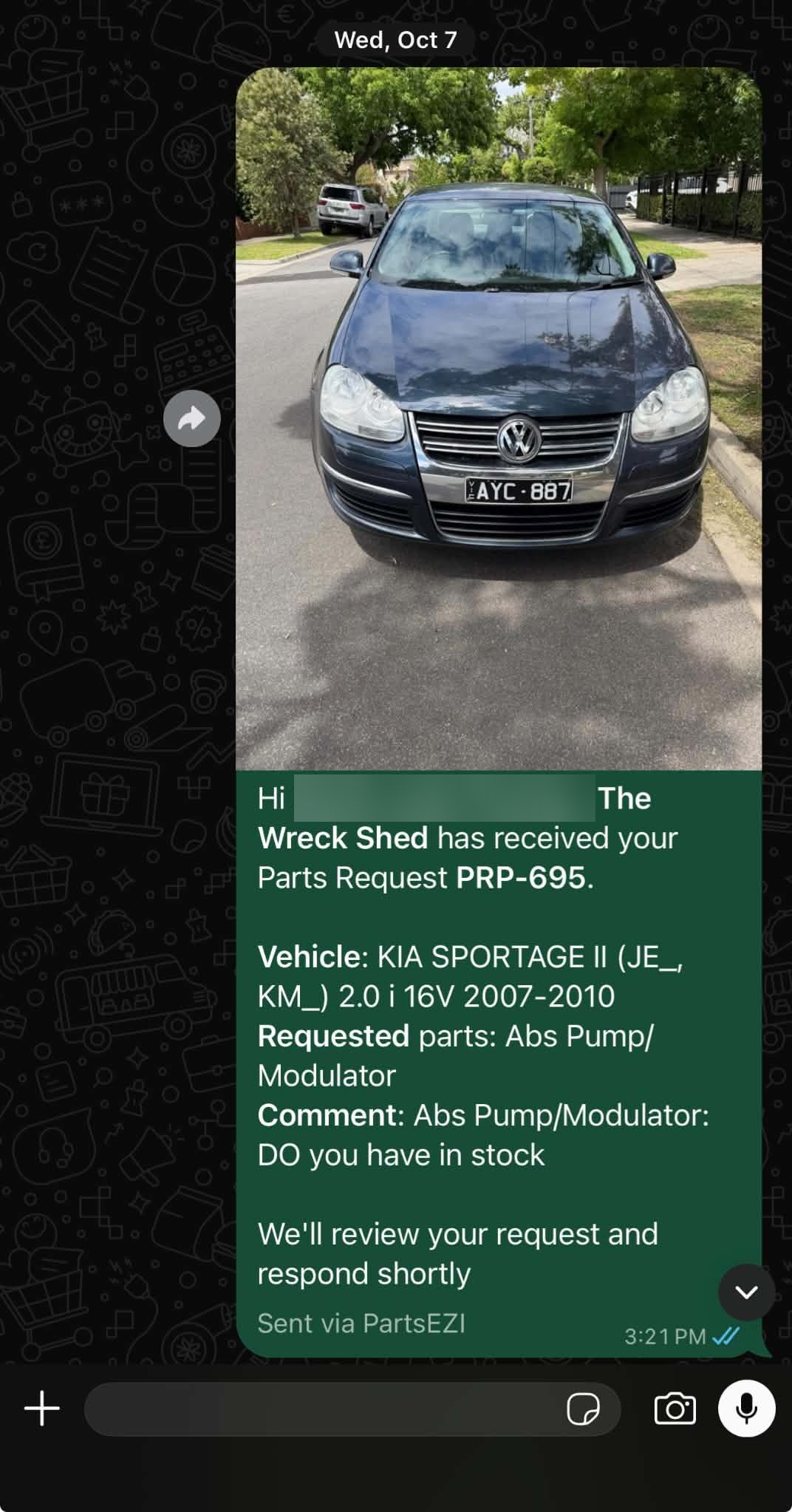
When the parts request is submitted, PartsEZI automatically sends a WhatsApp notification to both the customer and the partner. The message includes the Parts Request ID, vehicle, requested part and the customer's comment, so both sides have the request details straight away.
Step 3: Partner Receives the Parts Request in PartsEZI Chat
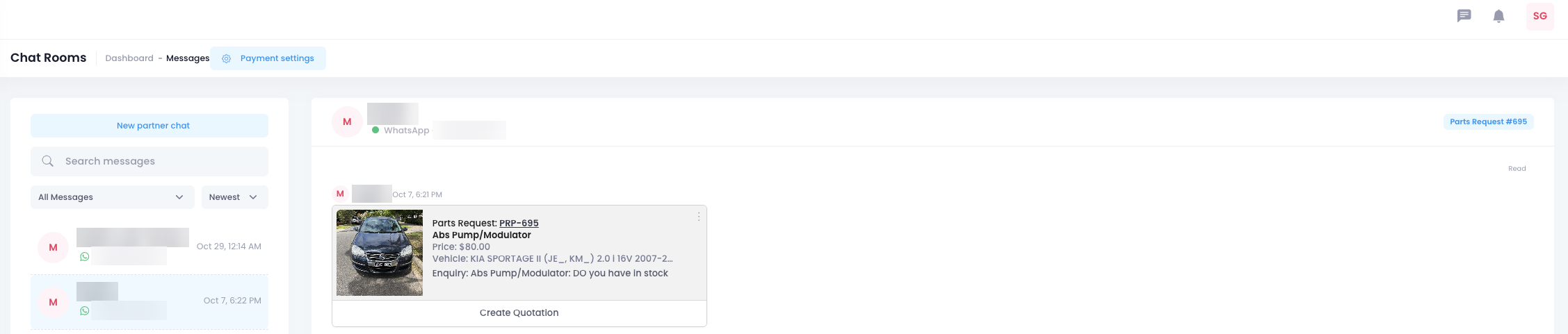
The parts request also appears in the partner's Chat Rooms in PartsEZI. Conversations from WhatsApp are marked with the WhatsApp icon and the customer's phone number. The request card shows the part, price, vehicle and enquiry, along with a Create Quotation button.
Step 4: Partner Sends a Quotation
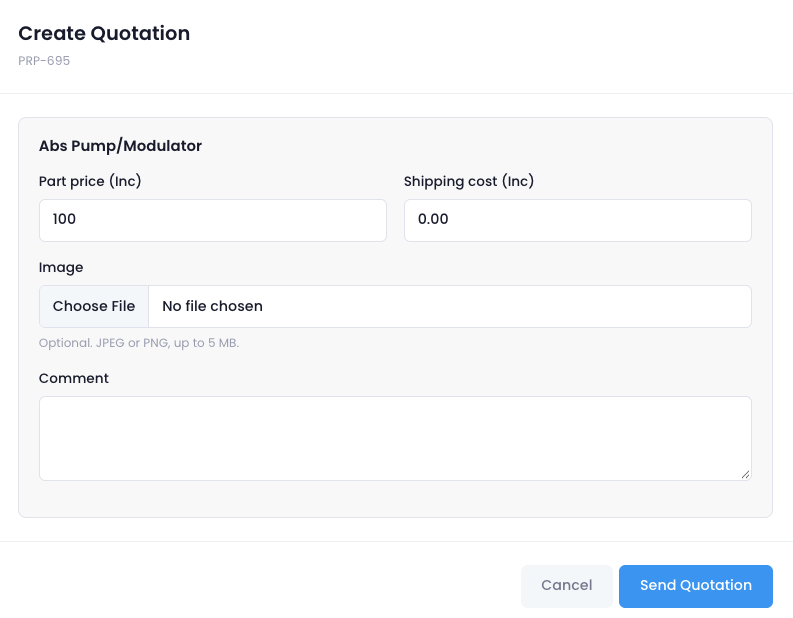
Clicking Create Quotation opens the quotation form. The partner enters the following details and clicks Send Quotation:
- Part Price (Inc GST)
- Shipping Cost (Inc GST)
- Image (optional, JPEG or PNG up to 5 MB)
- Comment
Step 5: Customer Receives and Accepts the Quotation
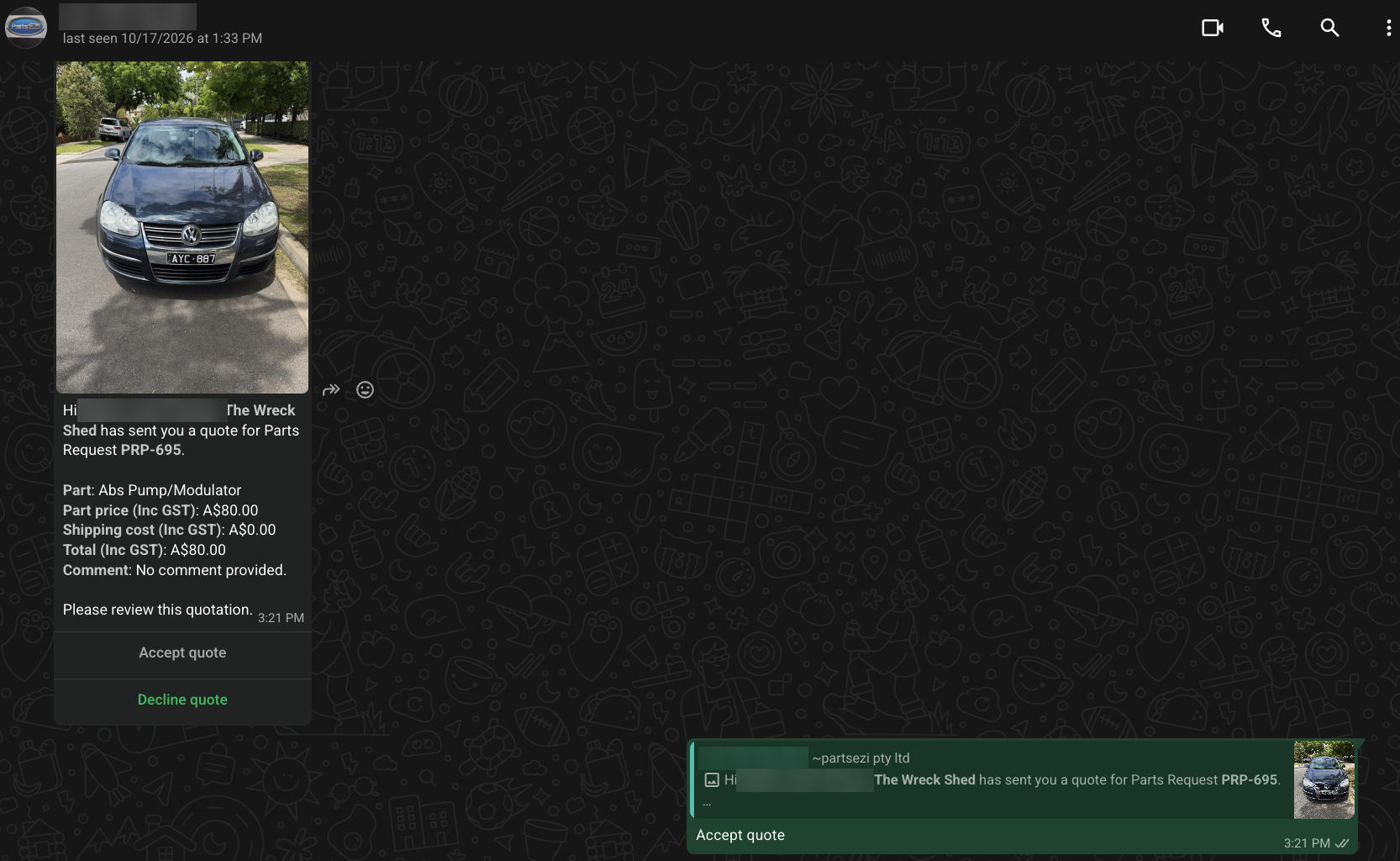
The customer receives the quotation on WhatsApp, showing the part, part price, shipping cost, total (all including GST) and any comment from the partner. The customer can reply with Accept quote or Decline quote directly from the message.
Step 6: Customer Receives a Payment Link
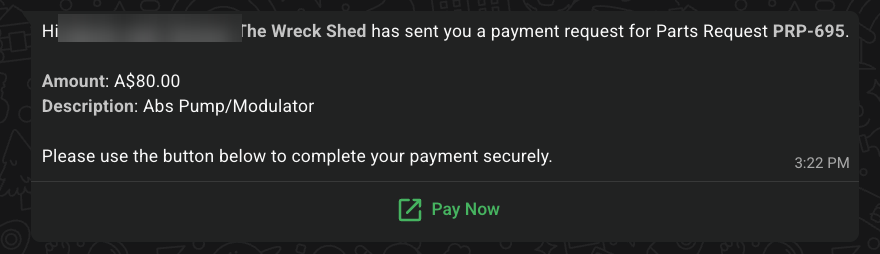
After the customer accepts the quote, PartsEZI automatically sends a payment request on WhatsApp with the amount and part description. The customer clicks Pay Now to complete the payment securely.
The payment link is created by the payment provider selected under Automatic payment links on the partner's Integrations page.